Add my Workspace Email to Mail (Mac)
Step 4 of the Set up my Workspace Email series.
Add your Workspace Email account to the Mail app. Then you can send and receive business emails from your Mac.
- Open Mail.
- If you're new to Mail: You'll see Choose a Mail account provider....
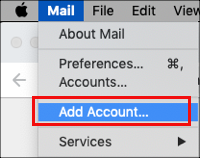
- If you already use Mail: Select Mail, then Add Account. You'll see Choose a Mail account provider....
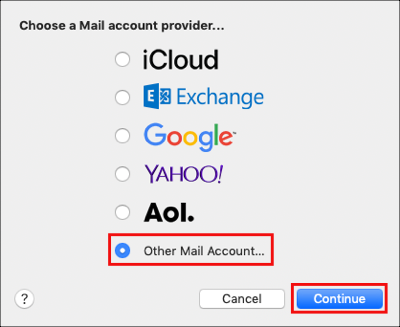
- Select Other Mail Account and Continue.
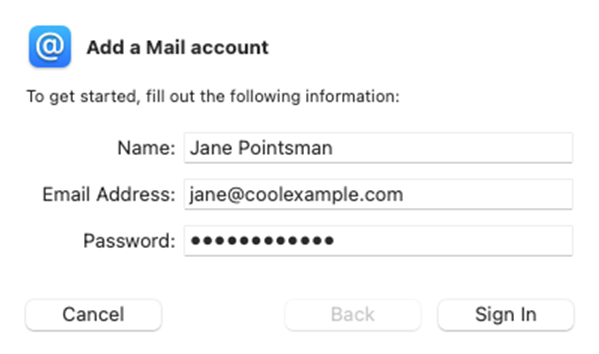
- Enter your Name, Email Address and Password. You'll need to enter your Workspace Email address and password (your GoDaddy username and password won't work here.)
- Select Sign In.
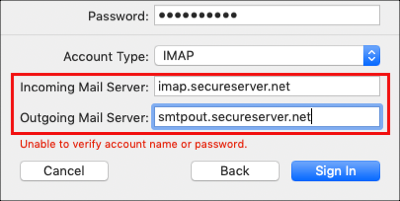
- Enter the Mail server settings and select Sign In.
- Incoming Mail Server: imap.secureserver.net
- Outgoing Mail Server: smtpout.secureserver.net
- Select Done. Mail verifies your account settings and loads your email.

Note: If the email servers weren't automatically found, you might see an error message. This is normal.
If you have more than one Mail account, select Inbox and choose your new email account to see your inbox.
Your email is on your Mac and you're good to go! If you want to add your email to another device, select Previous. If you're all set, head to the next step!