Add an SPF record
An SPF (Sender Policy Framework) record is a type of TXT record that can help identify which mail servers are permitted to send email on behalf of your domain. Adding an SPF record can help detect and prevent email spoofing. Only one SPF record will work on your domain at a time and we're unable to provide guidance on custom SPF records. Your domain must be using GoDaddy nameservers to add an SPF record in your GoDaddy account.
Example: If your email is set up with Professional Email, Microsoft 365 from GoDaddy, Linux Hosting, Gen 4 VPS & Dedicated Hosting, or Media Temple Mail, your SPF record must have the Value set as v=spf1 include:secureserver.net -all to work properly.
- Sign in to your GoDaddy Domain Portfolio. (Need help logging in? Find your username or password.)
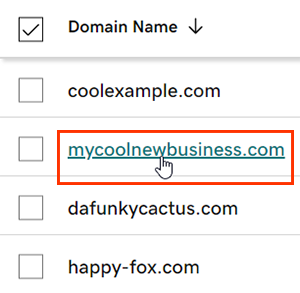
- Select an individual domain to access the Domain Settings page.
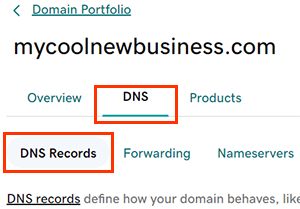
- Select DNS to view your DNS records.
- Select Add New Record and then select TXT from the Type menu.
- Enter the details for your new SPF record.
- Name: The hostname or prefix of the record, without the domain name. Enter @ to put the record on your root domain, or enter a prefix, such as mail.
- Value: The SPF rule to indicate emails are only allowed from your mail server. The Value must follow these guidelines:
- Maximum 512 characters are allowed
- Only ASCII characters are allowed
- Professional Email, Microsoft 365 from GoDaddy, Linux Hosting, Gen 4 VPS & Dedicated Hosting, and Media Temple Mail use the following SPF record:
v=spf1 include:secureserver.net -all - If you have Microsoft 365 from GoDaddy and the Advanced Email Security add-on, use the following SPF record:
v=spf1 a:dispatch-us.ppe-hosted.com include:secureserver.net -allRequired: When you're copying the SPF record, please be careful not to add any extra spaces before or after the record. This will invalidate the record.
- TTL (Time to Live): The amount of time the server should cache information before refreshing. The default setting is 1 hour.
- (Optional) Select Add More Records to add multiple DNS records at the same time. If you change your mind, select
 Delete to remove any records that haven't been saved yet.
 - Select Save to add your new record. If you added multiple records at the same time, select Save All Records.
- If your domain has Domain Protection, you'll need to verify your identity. If you've had 2-step verification (2SV) turned on for at least 24 hours, enter the code we sent via SMS, or enter the code from your authenticator app. Otherwise, enter the one-time password we sent to your registrant email address.
Most DNS updates take effect within an hour but could take up to 48 hours to update globally.
Related steps
- Edit your SPF records at any time.
- Find out how SPF records can help prevent email spoofing.
- Add DKIM records to your Microsoft 365 organization.
- You can also add SPF, DKIM, or DMARC records to Linux Hosting, Gen 4 VPS hosting and Dedicated Hosting.
More info
- Create a DNS template to quickly apply DNS records to your domains.
- Turn on auto-renew to continue your domain registration uninterrupted.
- Set up 2-step verification for the best security on your domains and account.